Before you start
- A Ligura account. Start free if you don’t have one.
- A ChatGPT account that allows custom MCP servers. This depends on your ChatGPT plan and workspace policy. In a business workspace, an administrator may need to enable it.
1. Copy your connection address
Ligura’s connection address is:2. Add Ligura as an MCP server
- In ChatGPT, open Settings and choose Plugins.
- Select the MCPs tab.
- Choose Add, then Add MCP server.
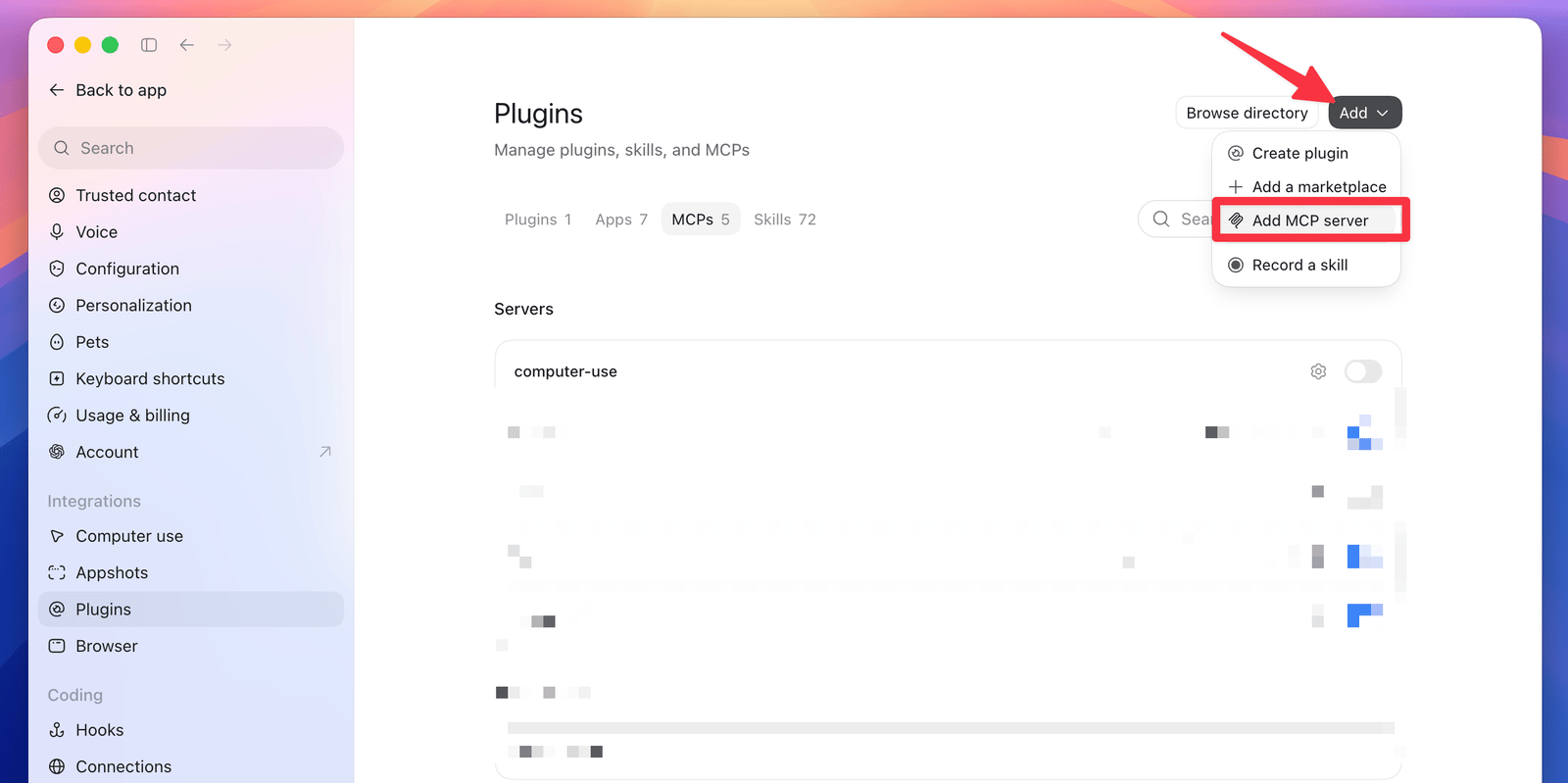
- Name the server Ligura and enter the connection address you copied.
- Save the server. When ChatGPT asks you to sign in, sign in to Ligura with your email link or code and review the access request before approving it.
- Check that Ligura is listed under Servers and that its switch is on.
3. Use Ligura in a conversation
Start a new conversation. If Ligura isn’t already available, add it from the tools menu. Then try:Use Ligura to list my Works.If ChatGPT shows your Works, or tells you that you don’t have any yet, the connection is working. Next, save something worth keeping.
If something doesn’t work
ChatGPT’s menus change from time to time, so labels may differ slightly from this guide. If you are stuck, contact support@getligura.com and tell us which step you reached.